
Auto-forward newsletters from Gmail.
A Gmail filter forwards new issues from the newsletters you choose to Taco Digest, to read in its inbox or in your digest. It runs on Google’s side, so it keeps working with your computer off.
Updated
Your newsletter address
Every account has one. Copy yours from the Inbox page in Taco Digest.
It receives mail while your account is on a trial or a paid plan.
Add your newsletter address to Gmail
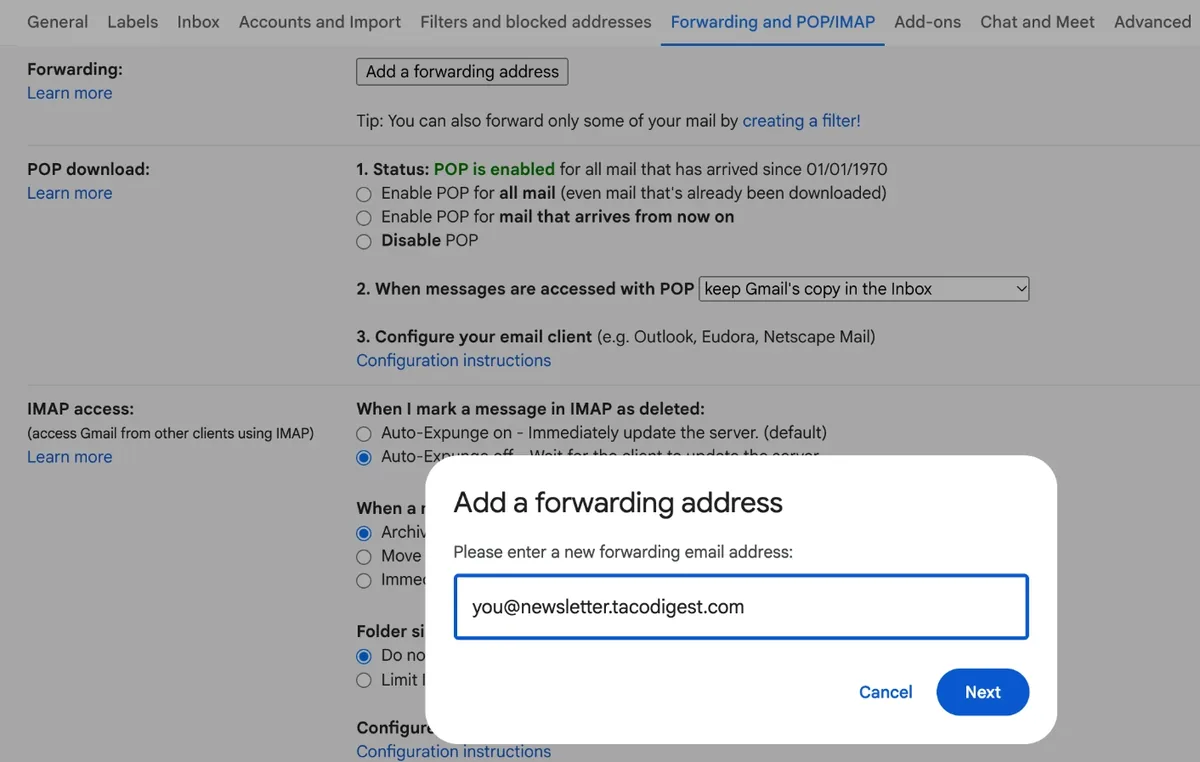
In Gmail on a computer, open Settings, then See all settings, then Forwarding and POP/IMAP, or go straight to Gmail’s forwarding settings, and click Add a forwarding address.
Paste your newsletter address, then click Next, Proceed and OK.
Confirm it from your Taco Digest inbox
Gmail sends a confirmation email to your newsletter address. Open it in your Taco Digest inbox and click the confirmation link.
Back in Gmail, leave Disable forwarding selected. The filter in the next step forwards only your newsletters.
Your Taco Digest inbox - Gmail Team(#58219347) Gmail Forwarding Confirmation - Receive Mail from you@gmail.com4 Nov
Create a filter with your newsletters
Open Settings, then See all settings, then Filters and blocked addresses, or go straight to Gmail’s filter settings, and click Create a new filter.
In From, type each newsletter’s sender address with OR between them. The address is next to the sender’s name at the top of an issue.
From
brief@example.com OR weekly@example.orgForward them to Taco Digest
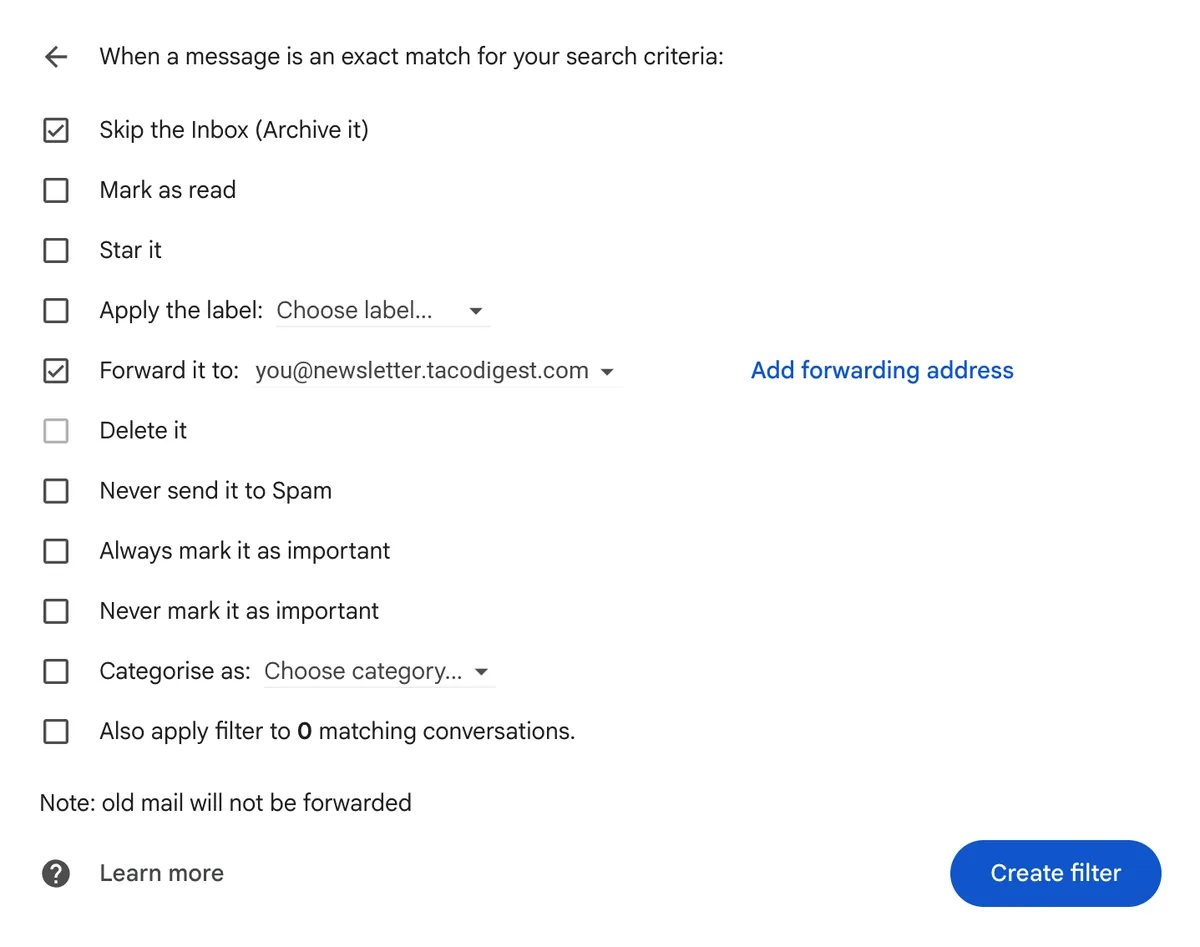
Click Create filter, tick Forward it to and choose your newsletter address.
To keep them out of Gmail’s inbox as well, tick Skip the Inbox (Archive it). Then click Create filter.
Add newsletters to your digest
Open your digest, click Add a source, choose Newsletters and click Add to digest.
One Newsletters source covers every newsletter in your inbox. Each digest brings the issues that came in since the last one, except those you’ve archived in the inbox.

Google explains forwarding in its own help too: Automatically forward Gmail messages and Create rules to filter your emails. On a Mac with Apple Mail, a Mail rule can do the same while Mail is open.
Questions
- Will each issue show under its newsletter?
- Yes. Forwarded or redirected, an issue keeps its original sender and subject, so it’s filed under the newsletter it came from.
- Does it work when my computer is off?
- Yes. Gmail filters run on Google’s side, so issues are forwarded as they arrive, wherever you are.
- How do I add another newsletter later?
- Open Filters and blocked addresses, edit the filter, and add the new sender to From with another OR.
- Can I keep sending them to another app as well?
- A filter forwards to one address. Make a second filter with the same senders that forwards to the other app.
- What about issues I already have?
- A filter forwards new mail only. Forward an older issue by hand, and it’s filed under its newsletter too.
- Do I need a digest to read them?
- No. Every issue waits in your inbox until you archive it, and you can read it there. A digest also brings new issues to your email, on your schedule.
- Which accounts receive newsletters?
- Accounts on a trial or a paid plan. Mail that arrives while an account is inactive isn’t kept.
Other ways in
- Subscribe with your newsletter addressSign up to a newsletter with your Taco Digest address, and new issues arrive there directly.Nothing to forward
- Redirect newsletters with an Apple Mail ruleA rule in Mail on your Mac redirects new issues to your Taco Digest inbox.Runs while Mail is open
- Forward an issue by handForward any issue to your address from your mail app. It’s filed under its newsletter.One issue at a time
New to Taco Digest?
One email with what’s new from the newsletters, feeds and channels you follow, on your schedule.