
Redirect newsletters with an Apple Mail rule.
A rule in Mail on your Mac redirects new issues from the newsletters you choose to Taco Digest, to read in its inbox or in your digest. It runs while Mail is open on that Mac.
Updated
Your newsletter address
Every account has one. Copy yours from the Inbox page in Taco Digest.
It receives mail while your account is on a trial or a paid plan.
Add a rule in Mail
In Mail on your Mac, choose Mail, then Settings, then Rules and click Add Rule. On older versions of macOS, Settings is called Preferences. Apple describes this window in Change Rules settings in Mail on Mac.
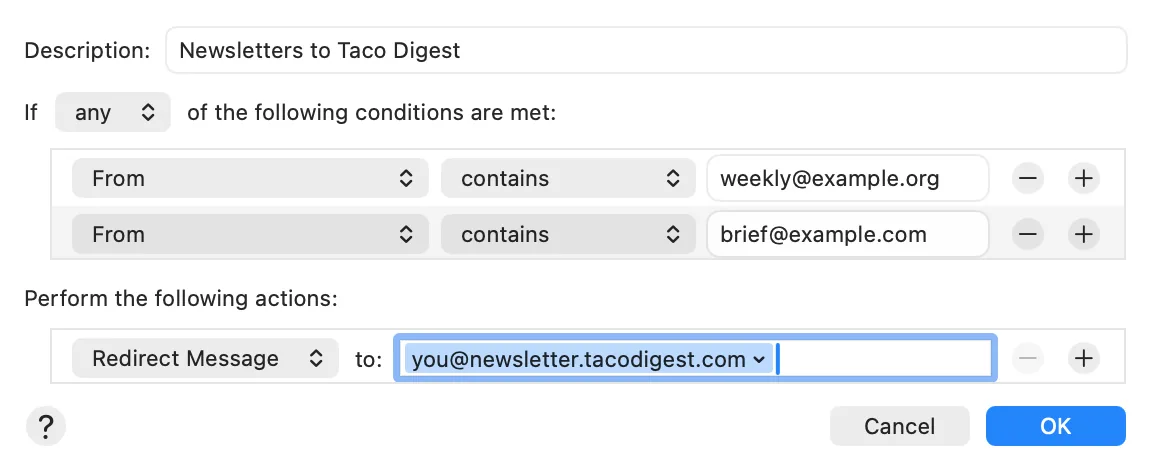
Give it a name you’ll recognise, such as Newsletters to Taco Digest.
Match your newsletters
Set If any of the following conditions are met. Then add one row per newsletter: From, contains, and the sender’s address. The + at the end of a row adds the next one.
Redirect them to Taco Digest
Under Perform the following actions, choose Redirect Message and paste your newsletter address.
Redirect sends each issue on as it came, from its own sender, so it’s filed under its newsletter.
Move them out of your inbox (optional)
Add a second action, Move Message, to the Archive of the account your newsletters arrive in: for Gmail, the Gmail account’s Archive. Not iCloud or On My Mac.
Use Move rather than Delete Message. Then click OK.
Test it on one issue
Select an issue from one of those newsletters and choose Message, then Apply Rules (⌥⌘L). It shows up in your Taco Digest inbox.
To send a single issue without the rule, choose Message, then Redirect… (⇧⌘E) and enter your newsletter address.
Add newsletters to your digest
Open your digest, click Add a source, choose Newsletters and click Add to digest.
One Newsletters source covers every newsletter in your inbox. Each digest brings the issues that came in since the last one, except those you’ve archived in the inbox.

Newsletters that arrive in Gmail can also be forwarded by a Gmail filter, which keeps working with your Mac asleep.
Questions
- Does the rule run when Mail is closed?
- No. Rules run only while Mail is open on that Mac. If your newsletters arrive in Gmail, a Gmail filter runs on Google’s side, with your computer off.
- Will each issue show under its newsletter?
- Yes. Forwarded or redirected, an issue keeps its original sender and subject, so it’s filed under the newsletter it came from.
- Can I redirect to Taco Digest and another app?
- Yes. A rule takes one Redirect action, but its field takes several addresses: put both in it, separated by a comma.
- How do I add another newsletter later?
- Open Mail’s rules, double-click the rule, and add a row for the new sender.
- What about issues I already have?
- Select them and choose Message, then Apply Rules. Or redirect one at a time with Message, then Redirect, or forward it by hand.
- Do I need a digest to read them?
- No. Every issue waits in your inbox until you archive it, and you can read it there. A digest also brings new issues to your email, on your schedule.
- Which accounts receive newsletters?
- Accounts on a trial or a paid plan. Mail that arrives while an account is inactive isn’t kept.
Other ways in
- Subscribe with your newsletter addressSign up to a newsletter with your Taco Digest address, and new issues arrive there directly.Nothing to forward
- Auto-forward newsletters from GmailA Gmail filter forwards new issues from the senders you choose to your Taco Digest inbox.Works with your computer off
- Forward an issue by handForward any issue to your address from your mail app. It’s filed under its newsletter.One issue at a time
New to Taco Digest?
One email with what’s new from the newsletters, feeds and channels you follow, on your schedule.